Requirements
- Windows 10 or 11, 64-bit
- No additional software needed, Python or similar is included in the installer
- Optional for the direct Outlook import: classic Outlook
- Optional for Jira, Tempo, Clockify, Toggl, Microsoft and Teams: your own credentials at the respective service
Installation
- Download INZOSO-WRK-Manager-Setup-0.2.0.exe from the download page and run it.
- Choose the language (German or English) and confirm the target folder. The default is a per-user installation without administrator rights, for all users if you like.
- Options: “Start with Windows (minimised in the notification area)” is preselected, a desktop icon is optional.
- After the installation the WRK-Manager starts right away if you like.
- The Start menu gets the folder “INZOSO” with “WRK-Manager” and a link to the browser extension folder.
- If the WRK-Manager is still running during an installation, the installer asks you to close it (tray menu, exit).
Message “Unknown publisher”
The installer is currently not signed with a code-signing certificate. Windows SmartScreen may therefore show a warning. Click “More info” and then “Run anyway”. With the SHA-256 checksum on the download page you can verify that the file is unchanged.
First start, tray icon and autostart
Closing the window minimises the WRK-Manager to the notification area, and detection keeps running. A notice appears the first time.
- Right-click the icon: “WRK-Manager öffnen”, “Erfassung starten/beenden” and “Beenden”. A double-click opens the window.
- During a recording the icon changes (green dot) and the tooltip shows the running time.
- Only one program instance runs at a time.
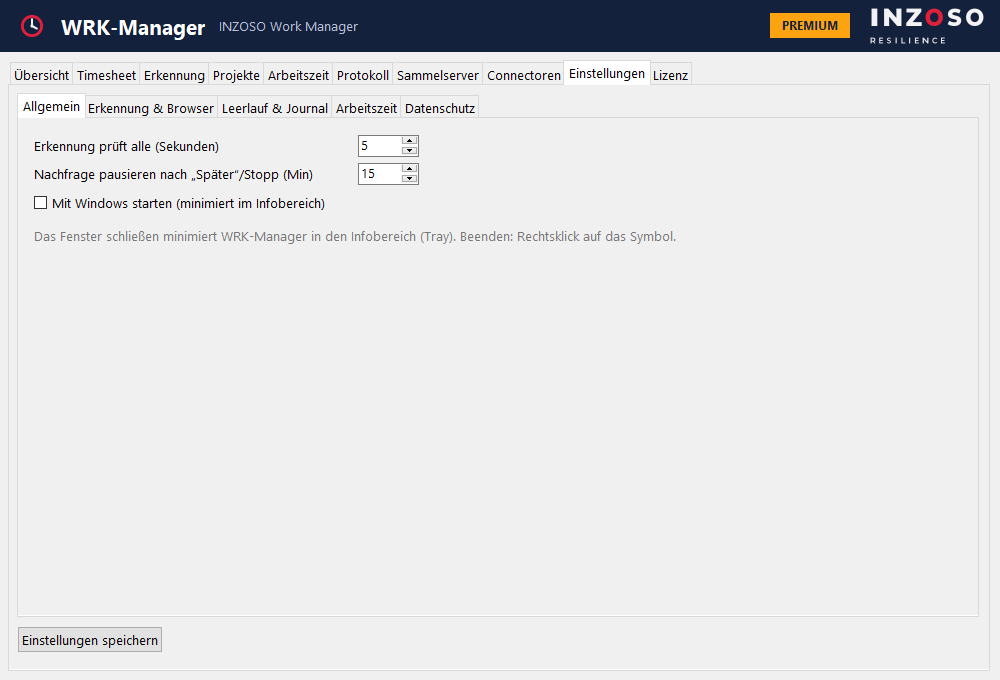
- In the settings under “Allgemein” you set the detection check interval (default 5 seconds), the prompt pause (default 15 minutes) and autostart.
Activating Premium
Without a license key the Standard scope runs. For Premium open the “Lizenz” tab, enter the key and click “Aktivieren”. The functions are unlocked immediately, no internet connection is needed.
Uninstalling
Via Windows “Apps & features” or the Start menu entry. Your saved data (timesheet etc.) stays in the folder %APPDATA%\INZOSO\WRK-Manager until you delete it manually.