The principle in three steps
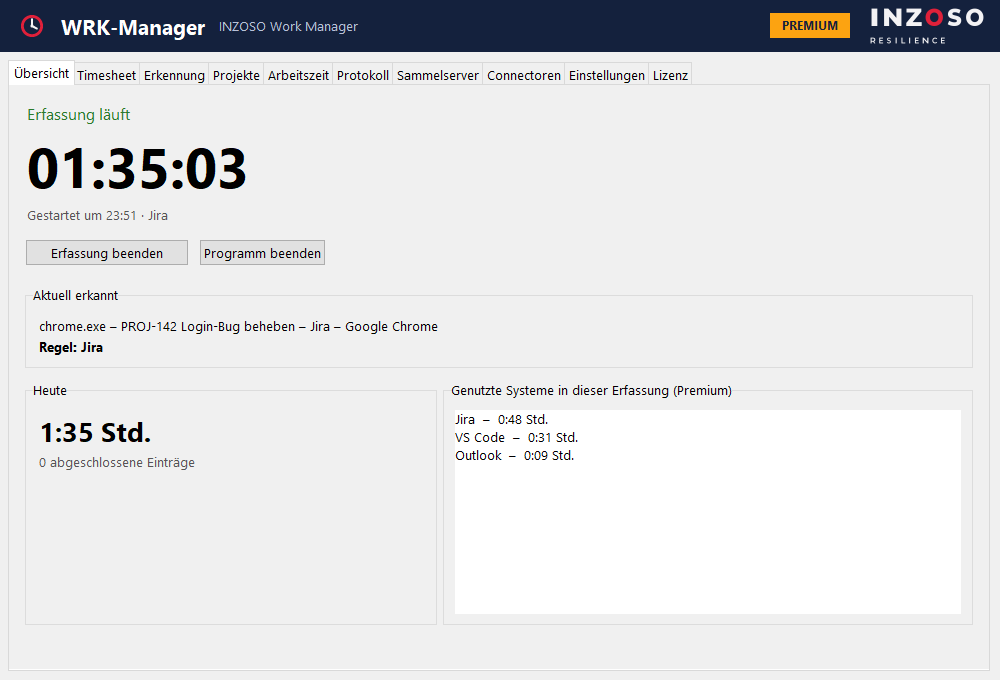
- Create rules: In the “Erkennung” tab you define what counts as work, e.g. the program excel.exe, the website “Jira” or the system “SAP”.
- Ask and record: When such a window becomes active, a small prompt at the bottom right asks whether to start recording. Time runs in the background.
- Stop and document: When you stop, the WRK-Manager asks what you worked on. That becomes the timesheet entry.
- Detection needs rules to be set up; it does not work by itself for every program.
Detection rules
A rule consists of these details:
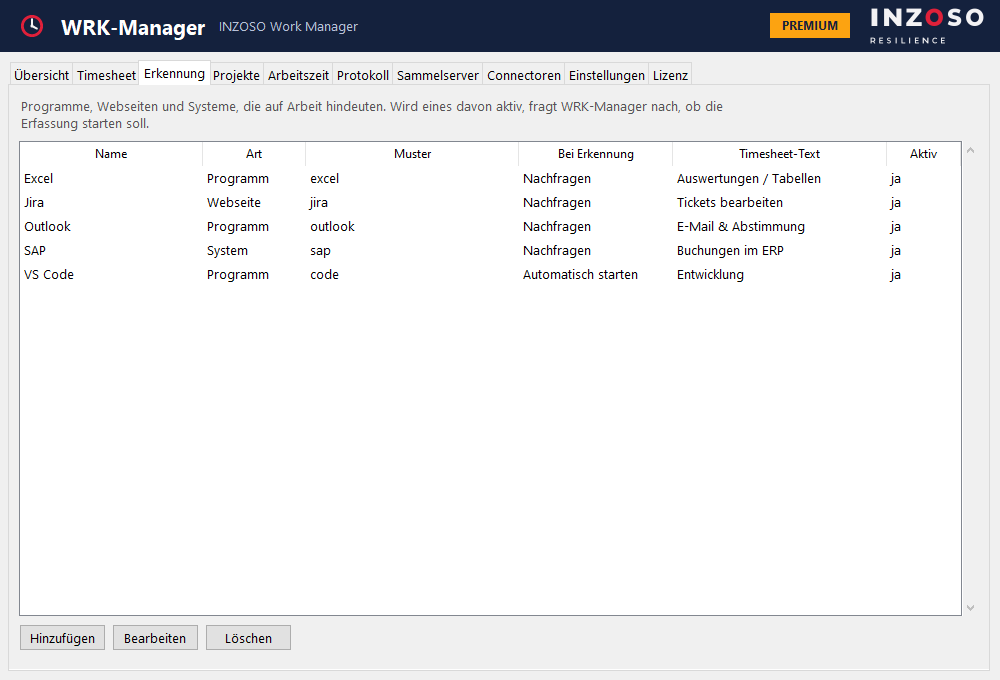
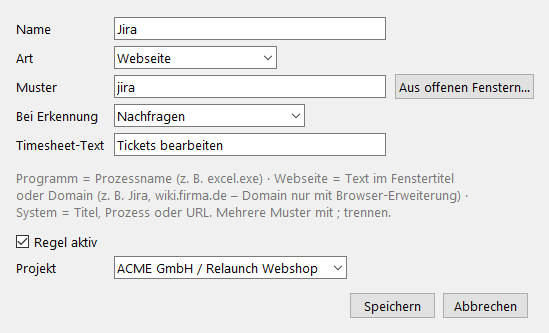
- Name: freely selectable
- Type: “Programm” (process name, e.g. excel.exe), “Webseite” (text in the window title or the domain, domain only with the browser extension) or “System” (title, process or URL)
- Pattern: case does not matter, separate several patterns with a semicolon (e.g. jira;confluence)
- On detection: “Nachfragen” (ask, default) or “Automatisch starten” (start automatically, Premium)
- Timesheet text: task suggestion when stopping (Premium)
- Project: assigns the recording to a project (Premium)
- Active: rule on or off
- Handy: “Aus offenen Fenstern…” lists all visible windows with program and title, a double-click takes one over.
The “work detected” prompt
The prompt appears at the bottom right, always on top and with a short signal tone:
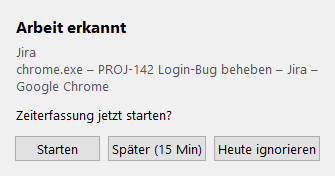
- Starten (start): starts the recording.
- Später (15 Min) (later): asks again for this rule only after the pause. The duration is adjustable.
- Heute ignorieren (ignore today): does not ask again for this rule today.
- If you do not react, the prompt closes after 2 minutes and counts as “later”.
- After a recording ends, the WRK-Manager does not immediately ask again for the set pause.
Stopping and the task query
When you stop, the dialog “Was hast du bearbeitet?” appears with start, end, duration and trigger.
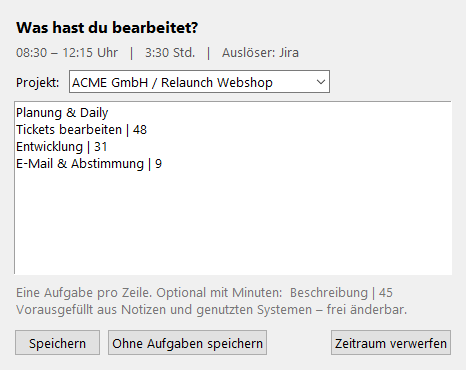
- One task per line, optionally as “description | minutes”.
- Buttons: “Speichern” (save), “Ohne Aufgaben speichern” (save without tasks) and “Zeitraum verwerfen” (discard period).
- Premium: project selection and pre-filled lines from notes and systems used, freely editable.
Crash-safe
If a recording is interrupted, the WRK-Manager ends it at the last known point in time on the next start and then asks for the tasks.