What a profile contains
A profile bundles settings and the compliance policy in one file (.secprofile). Profiles can be imported with one click, and you see every change beforehand. Signed profiles prove origin and integrity. That is how you distribute your security settings to several PCs (Premium, menu Business › Richtlinien).
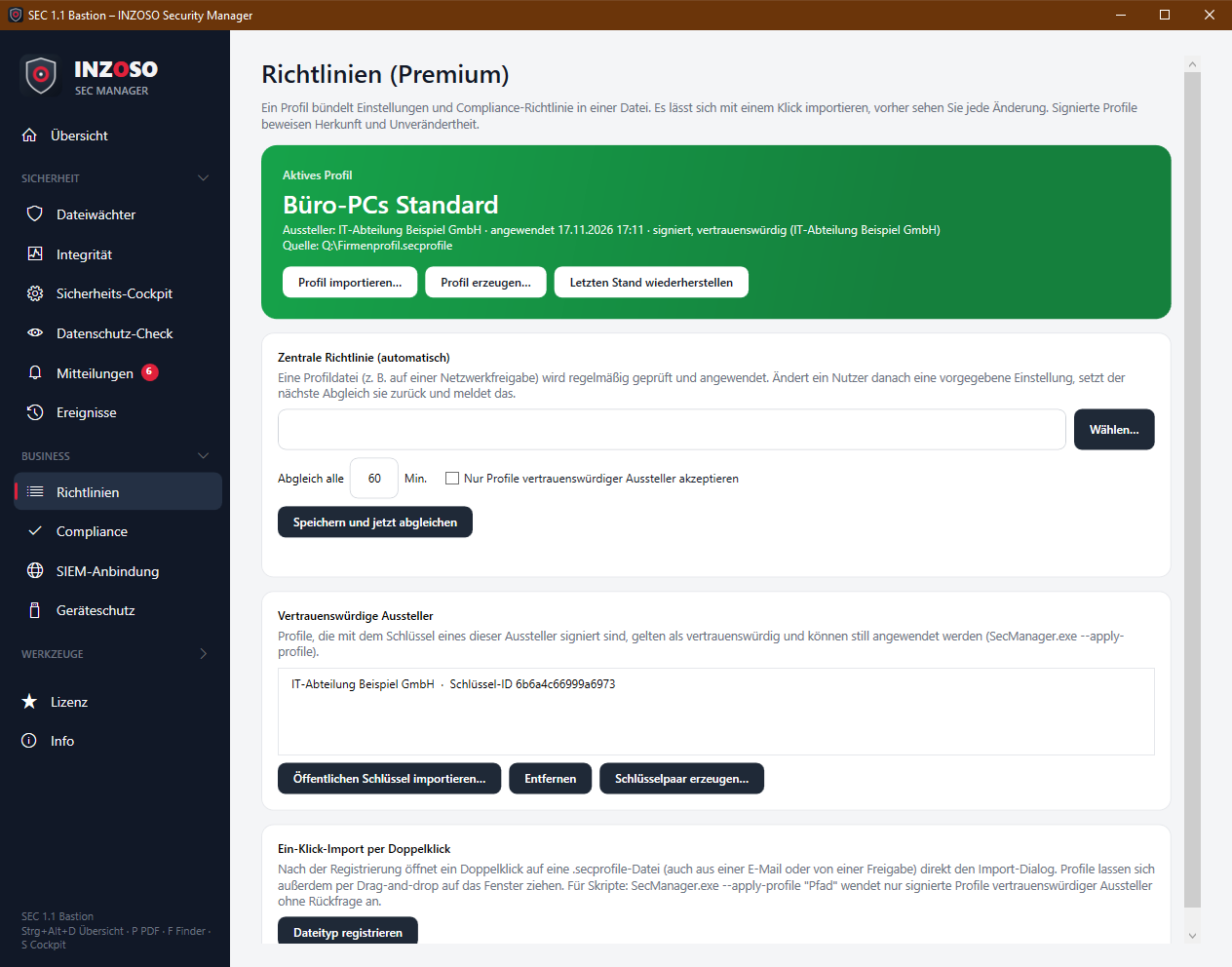
- Monitoring: continuous monitoring, interval, download check, signature updates, Defender second opinion, USB, ransomware, monitored folders
- Notifications: pop-ups and message types
- SIEM: forwarding, transport, host, port, format, URL, minimum level
- Heartbeat: active, URL, interval
- Compliance: policy with deselected checks and thresholds
- Secrets such as the SIEM token are not included. Settings that are not in the profile stay unchanged.
Importing a profile with one click
Three ways lead to the import:
- Double-click the .secprofile file (also from an email or a share). Choose “Dateityp registrieren” once for this (your user account only, no administrator rights). If the SEC Manager is already running, the running instance takes over the job.
- Drag and drop the file onto the program window.
- “Profil importieren…” on the page.
- The import dialog opens. It shows the issuer, the signature status and every change with “Aktuell” and “Neu”. One click applies the profile. Before that the SEC Manager saves the previous state automatically.
Signature status in the import dialog
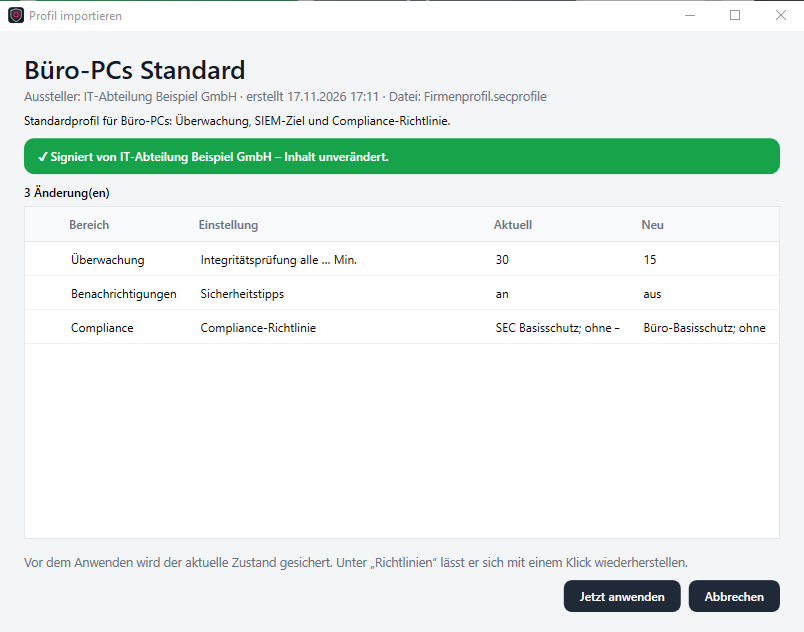
- Green: signed by an issuer you trust, content unchanged. Button “Jetzt anwenden”.
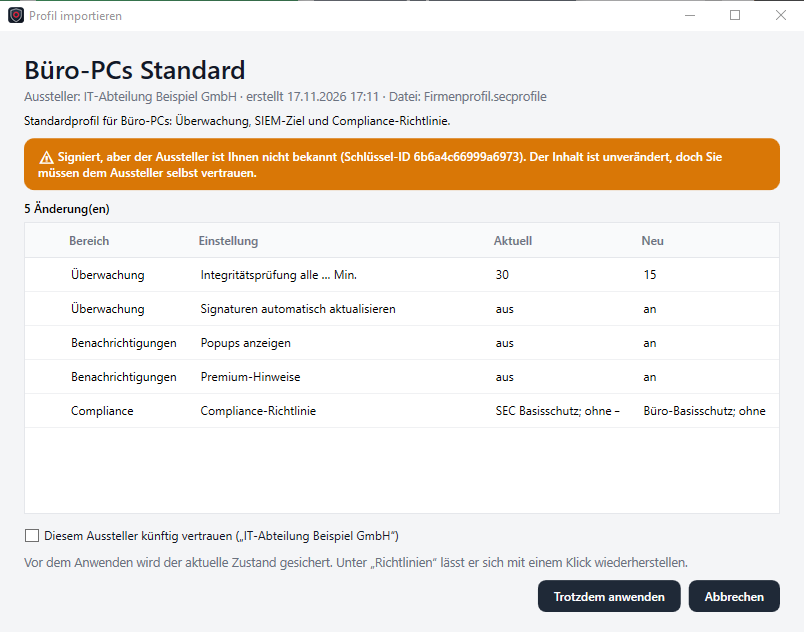
- Orange: signed, but the issuer is unknown to you (with key ID), content unchanged. You can trust the issuer in future (checkbox). Button “Trotzdem anwenden”.
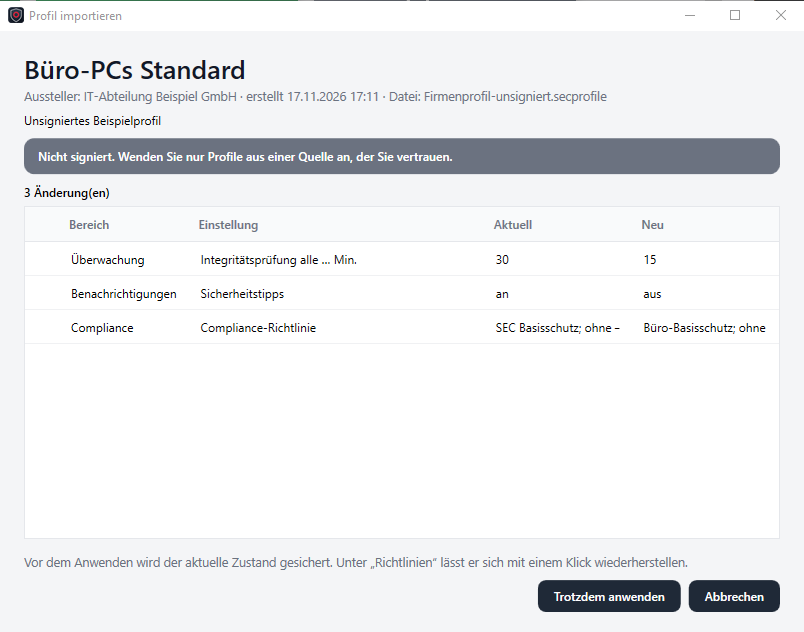
- Grey: not signed. Only apply from a trusted source. Button “Trotzdem anwenden”.
- Red: signature invalid, file changed or damaged. Applying is blocked.
Warning marks
The dialog marks changes with special weight:
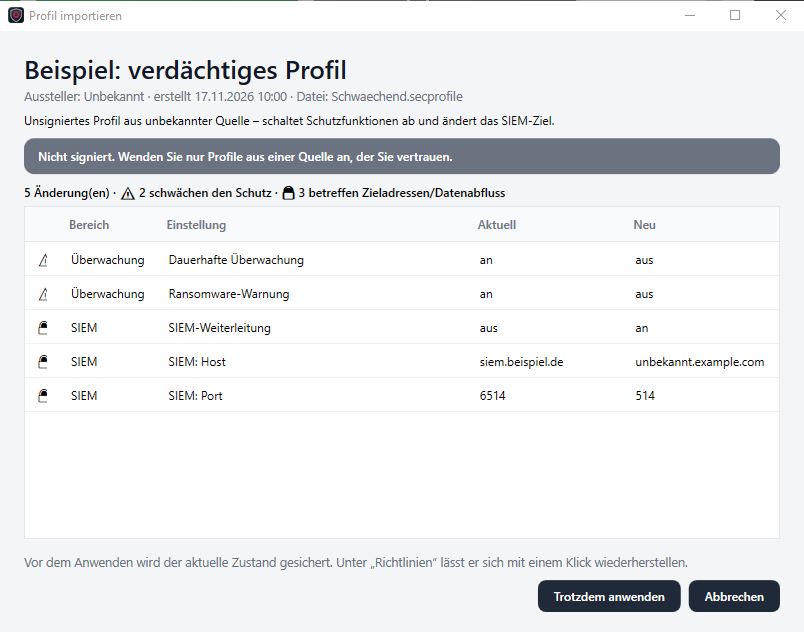
- ⚠: The change weakens protection (e.g. continuous monitoring or the ransomware warning is switched off).
- 🔒: The change concerns target addresses and data outflow (SIEM host, port, URL, heartbeat).
- Before applying, all values are checked (ports, addresses, paths, intervals). If a value is invalid, nothing is applied.
Creating a profile
“Profil erzeugen…” creates a profile file from your current settings:
- Enter name, description and issuer.
- Choose areas: monitoring, notifications, SIEM, heartbeat, compliance policy.
- Optionally sign (recommended): choose the private key.
- Save. The file can now be passed on.
Restoring the last state
Before every apply the SEC Manager saves the previous state (the last 10 backups). “Letzten Stand wiederherstellen” opens the backup in the import dialog; one click restores it.
Trusted issuers and keys
An issuer signs profiles with a private key; recipients trust its public key:
- Schlüsselpaar erzeugen…: creates a private (.pem) and a public key (.secpub). The public one is entered as trusted on this PC immediately. Keep the private key secret; it is not password protected.
- Öffentlichen Schlüssel importieren…: adds an issuer. Beforehand a dialog shows name and key ID for checking (ideally compare via a second channel).
- Entfernen: profiles of this issuer no longer count as trusted.
Central policy (automatic)
A profile file, e.g. on a network share, is checked and applied regularly:
- Enter the path, choose the sync interval (default 60 minutes, at least 5), “Speichern und jetzt abgleichen”.
- If a user later changes a preset setting, the next sync resets it and reports a warning.
- “Nur Profile vertrauenswürdiger Aussteller akzeptieren” blocks unsigned and foreign-signed profiles. Recommended for company PCs.
- Invalid signature, unreachable path or faulty file are reported (each problem once).
Silent apply via the command line
SecManager.exe --apply-profile "\\server\share\company.secprofile" applies the profile without asking, but only if the signature is valid and comes from a trusted issuer (and a Premium license is present). Otherwise it is rejected and noted in the event log. This lets you automate distribution by script or software distribution. With --import-profile the import dialog opens instead.
Notes
- The applied profile and its signature status are shown at the top of the page.
- Whoever has the private key can sign profiles in your name. Protect it accordingly.
- Profiles control only the SEC Manager itself. There is no enforcing of Windows settings.
- Unsigned profiles and profiles from unknown issuers can be applied after explicit confirmation as long as “Nur Profile vertrauenswürdiger Aussteller akzeptieren” is off. For company PCs you should switch this option on.