The interface
The menu is on the left, the content on the right. The menu is organised in groups that can be collapsed and expanded:
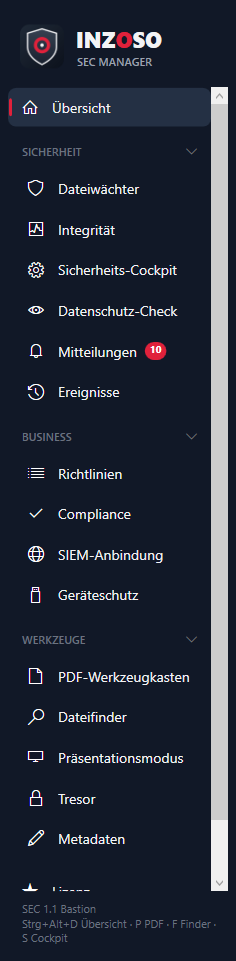
- Übersicht (overview): status tiles at a glance
- Sicherheit (security): file guard, integrity, security cockpit, privacy check, messages, events
- Business: policies, compliance, SIEM connection, device protection (Premium)
- Werkzeuge (tools): PDF toolbox, file finder, presentation mode, vault, metadata
- Lizenz and Info: manage edition, version, change log, autostart, diagnostic package
- Pages with the red badge PRO are Premium features. A red counter on the “Mitteilungen” entry shows unread messages.
Tray and keyboard shortcuts
The SEC Manager runs in the notification area of the taskbar. A click on the icon opens the window. Closing the window does not quit the program, it keeps running in the tray. To quit: right-click the tray icon › “Beenden”.
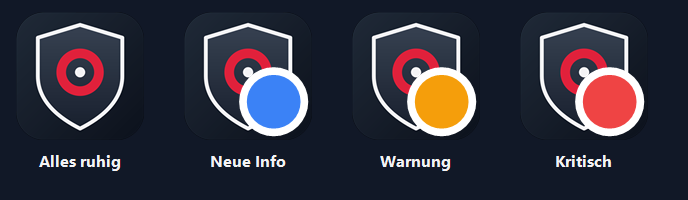
The coloured dot on the tray icon shows the most severe unread message: no dot = all quiet, blue = new info, orange = warning, red = critical. The tooltip gives the number of new messages.
Global keyboard shortcuts (also with the window hidden):
- Ctrl + Alt + D: overview
- Ctrl + Alt + P: PDF toolbox
- Ctrl + Alt + F: file finder
- Ctrl + Alt + S: security cockpit
Recommended setup in 5 steps
- Load virus signatures (important): The SEC engine also works without signatures (EICAR test file and heuristics) but only detects known malware with signatures. They are not part of the installation package. Install Python (if not present) and run pip install cvdupdate. Then choose Sicherheit › Dateiwächter › “Jetzt aktualisieren”. Afterwards the page shows e.g. “Hash-Signaturen: 540.402 aus 3 Datei(en)”.
- Create the baseline: Sicherheit › Integrität › “Jetzt prüfen”. The first check saves the current state as the baseline, later checks show only deviations. Look at the “Risiken” tab, it applies independently of the baseline.
- Look at the cockpit: Sicherheit › Sicherheits-Cockpit shows antivirus, firewall, encryption, updates and Wi-Fi security with a next step.
- Set up messages: Sicherheit › Mitteilungen: choose which messages appear as a pop-up (security warnings, status notes, weekly report, tips).
- Optionally activate Premium: Lizenz › enter the license code › “Aktivieren”. Continuous monitoring, download check, business functions and the Premium tools then run.
Signatures without Python
Without Python you place ClamAV files (main.cvd, daily.cvd, …) by hand in the signature folder (button “Signaturordner öffnen”) and choose “Signaturen neu laden”. With Premium the set then updates automatically every 4 hours.
Background: The ClamAV servers only allow known clients. That is why the official mirror tool cvdupdate is used and not a download of our own.
Where is my data?
Everything is local under %APPDATA%\SecManager (settings, log, baseline, license …). “Info › Datenordner öffnen” opens the folder. The full list is in the “Reference” article.
Help with problems
“Info › Diagnosepaket erstellen…” creates a ZIP with version, system info, settings (without token), the latest events and the crash log, without license code, baseline or documents. You decide whether to pass it on to support.