Pop-ups
Messages appear as their own pop-up above the taskbar. It takes no focus (does not disturb typing), also appears with Windows “do not disturb” and disappears by itself:
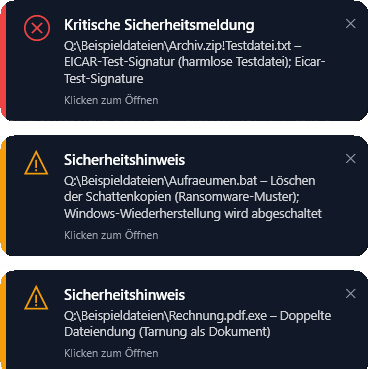
- Info: blue, 7 seconds
- Warning: orange, 10 seconds
- Critical: red, 15 seconds
- If the mouse is over the pop-up, it stays. A click opens the matching page, the ✕ closes it. At most three pop-ups are visible at once, further ones wait.
Tray icon
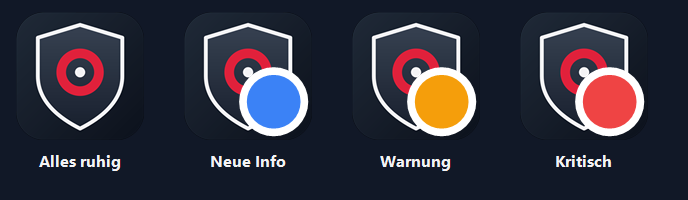
The coloured dot on the tray icon shows the most severe unread message. The tooltip gives the number. The tray menu offers “Mitteilungen (n neu)” and “Nicht stören”.
Message types
Each message type only comes at sensible intervals; there is no constant notification:
- Security warnings: all warnings and critical events (findings, integrity deviations, ransomware suspicion, compliance deviations, failed SIEM). The same message at most every 10 minutes.
- Status notes: firewall, antivirus, updates or Wi-Fi with a problem, signatures older than 3 days, integrity check not run for over 7 days, Premium activated. At most once a day per topic.
- Weekly report: “Letzte 7 Tage: n Downloads geprüft, n Warnungen, n kritische Meldungen. Compliance: n %”, every 7 days.
- Security tips: twelve tips in rotation, every 3 days.
- Premium notes: only in the Basis edition, at most every 14 days.
- Welcome: once on first start.
Message settings
On the “Mitteilungen” page you choose which message types you receive. In addition:
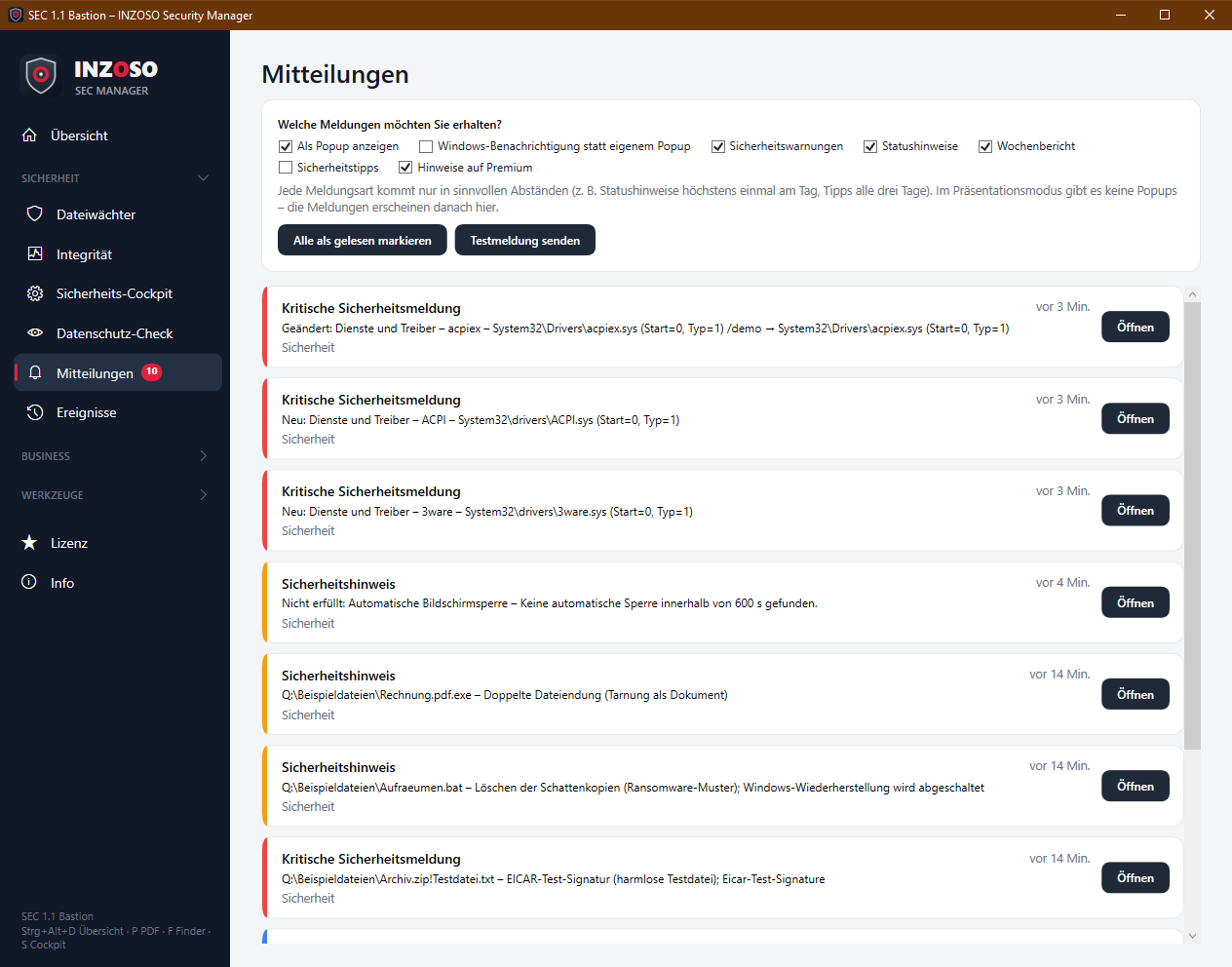
- Als Popup anzeigen: off means messages appear only in the center.
- Windows-Benachrichtigung statt eigenem Popup: uses the simple Windows notification at the tray. Windows can suppress it through “do not disturb”.
- “Alle als gelesen markieren” and “Testmeldung senden”.
- If you switch off the security warnings, you only learn about findings in the events. The program points this out.
Do not disturb
In presentation mode there are no pop-ups during a meeting. Manually it works via tray menu › “Nicht stören”. Messages still land in the center, and after the meeting a message shows how many arrived.
The event log
The log lists everything the SEC Manager detects and does, from “monitoring started” to “malware detected”. It is the central source for messages and for the SIEM connection.
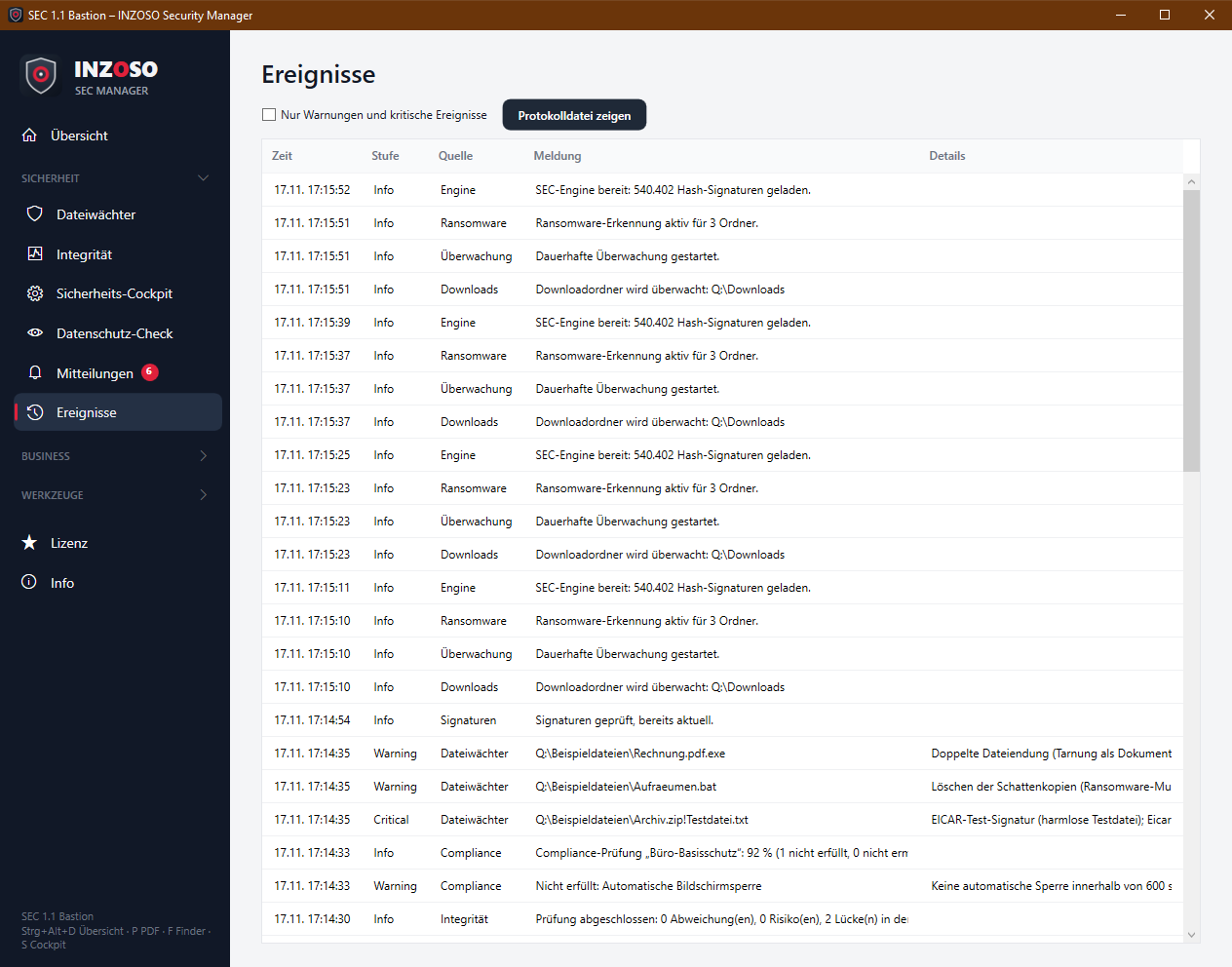
- Columns: time, level (Info, Warning or Critical), source, message, details.
- Sources: Engine, Überwachung, Downloads, USB, Ransomware, Integrität, Sicherheitseinstellung, Compliance, Dateiwächter, Signaturen, SIEM, Heartbeat, Lizenz, Richtlinie, Popup, Tresor, System.
- “Nur Warnungen und kritische Ereignisse” hides info messages. “Protokolldatei zeigen” opens events.jsonl in Explorer. The list updates live.
The log file
- It is under %APPDATA%\SecManager\events.jsonl, one JSON line per event, and rotates at 5 MB (events.jsonl.1). The format is machine-readable and SIEM-ready.
- With Premium and a configured SIEM connection, events from the chosen level on are forwarded.
- Entries can contain personal information through time and paths. Check that before passing logs on. The diagnostic package also contains the latest 1000 events.
- The message history (up to 200 entries) is stored locally in notify-state.json and may contain file paths.