Signing in
Enter user name and password and choose “Anmelden”. The window at the top shows name and role. All times in the program are UTC (universal time).
As admin: creating a resource
Tab “Ressourcen verwalten” › “Neu…”.
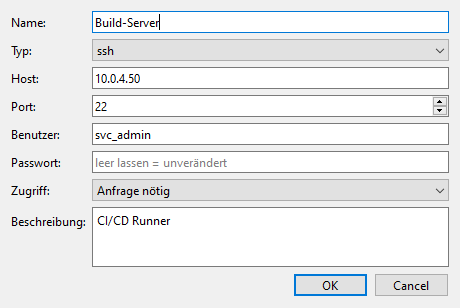
- Name (unique) and type: RDP or SSH. When you switch, the program sets the default port (RDP 3389, SSH 22).
- Host (name or IP address) and port.
- User and password used to make the connection. The password is stored encrypted. When editing, an empty field means “unchanged”.
- Access: “Anfrage nötig” or “Direkter Zugriff”.
- Description (optional).
- “Bearbeiten…” changes, “Löschen” removes the resource together with its requests.
As admin: managing users
Tab “Benutzer”.
- “Neu…”: user name, display name, password (at least 6 characters) and role.
- “Rolle ändern…” and “Passwort setzen…” for the selected user.
- “Aktiv/Inaktiv”: deactivated users cannot sign in. Your own account cannot be deactivated.
As user: connecting
Tab “Ressourcen”. Select a resource and choose “Verbinden” (or double-click). The “Zugriff” column shows:
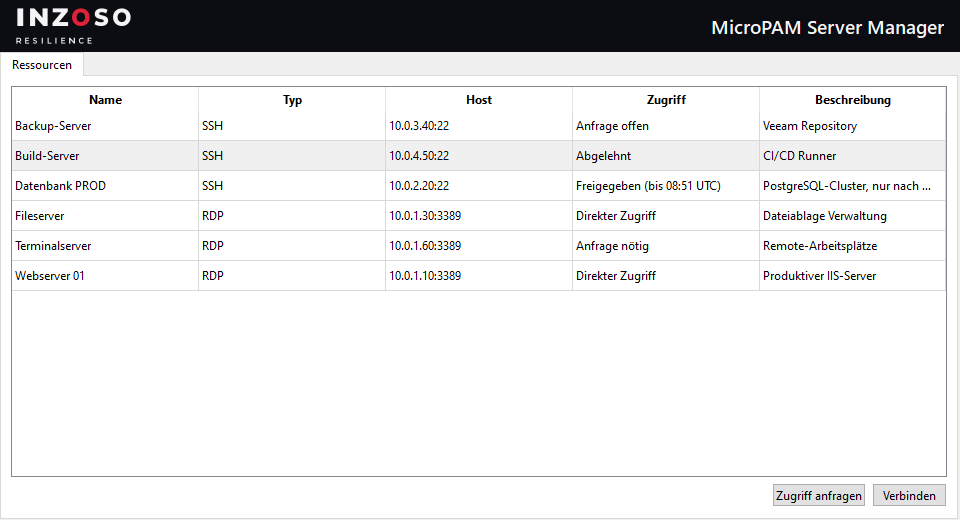
- Direkter Zugriff: connect right away.
- Freigegeben (bis hh:mm UTC) (approved until): connect until the approval expires.
- Anfrage nötig: request first.
- Anfrage offen (request open): an approver has not decided yet.
- Abgelehnt (rejected): requesting again is possible.
As user: requesting access
Select a resource › “Zugriff anfragen” › enter a reason › OK. As soon as an approver has decided, the status changes automatically (refreshed every 5 seconds) and the status bar reports that a request was handled.
As approver: handling requests
As long as the SRV-Manager is running and you are signed in, a pop-up appears for a new request:
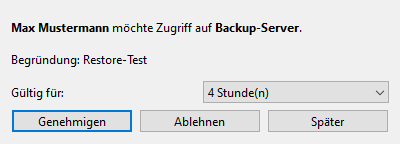
- Genehmigen (approve): choose the validity first (1, 4, 8 or 24 hours).
- Ablehnen (reject)
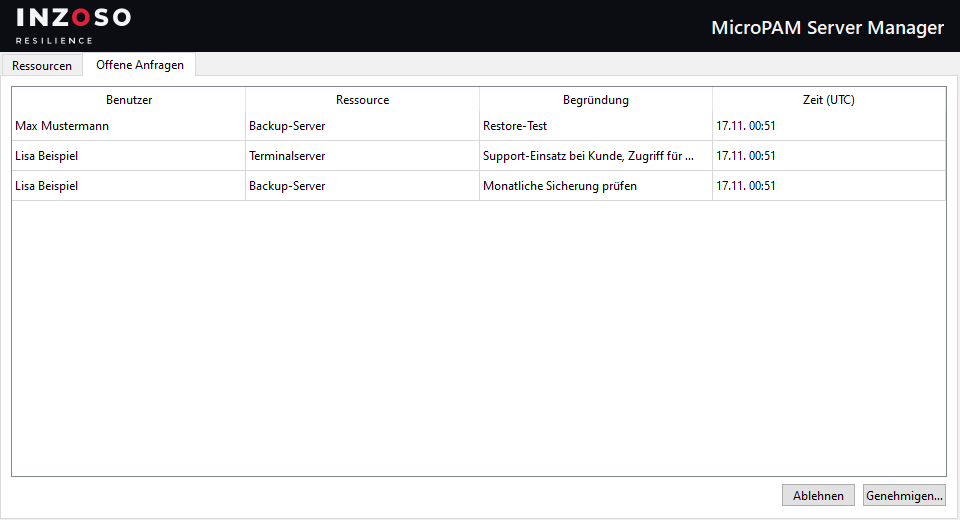
- Später (later): The pop-up does not appear again until the next program start. The request stays open and is visible in the “Offene Anfragen” tab.
- The “Offene Anfragen” tab lists all open requests with user, resource, reason and time. “Genehmigen…” asks for the validity in hours (1 to 168), “Ablehnen” rejects.
As approver: connecting
Approvers see all resources with “Direkter Zugriff” and connect without a request.
What happens when connecting
- RDP: The credentials are briefly stored in the Windows vault, Windows Remote Desktop (mstsc) opens and connects without a password prompt. After 20 seconds the SRV-Manager removes the entries again.
- SSH: Windows OpenSSH opens in a new console window. OpenSSH cannot take a password as an argument, so it sits on the clipboard for 30 seconds. Paste it at the password prompt with Ctrl+V (right-click in the Windows console).
- Every connection is logged.
Quitting
Closing the window quits the SRV-Manager. Approvers only receive pop-ups while the program is running and they are signed in.