Getting started
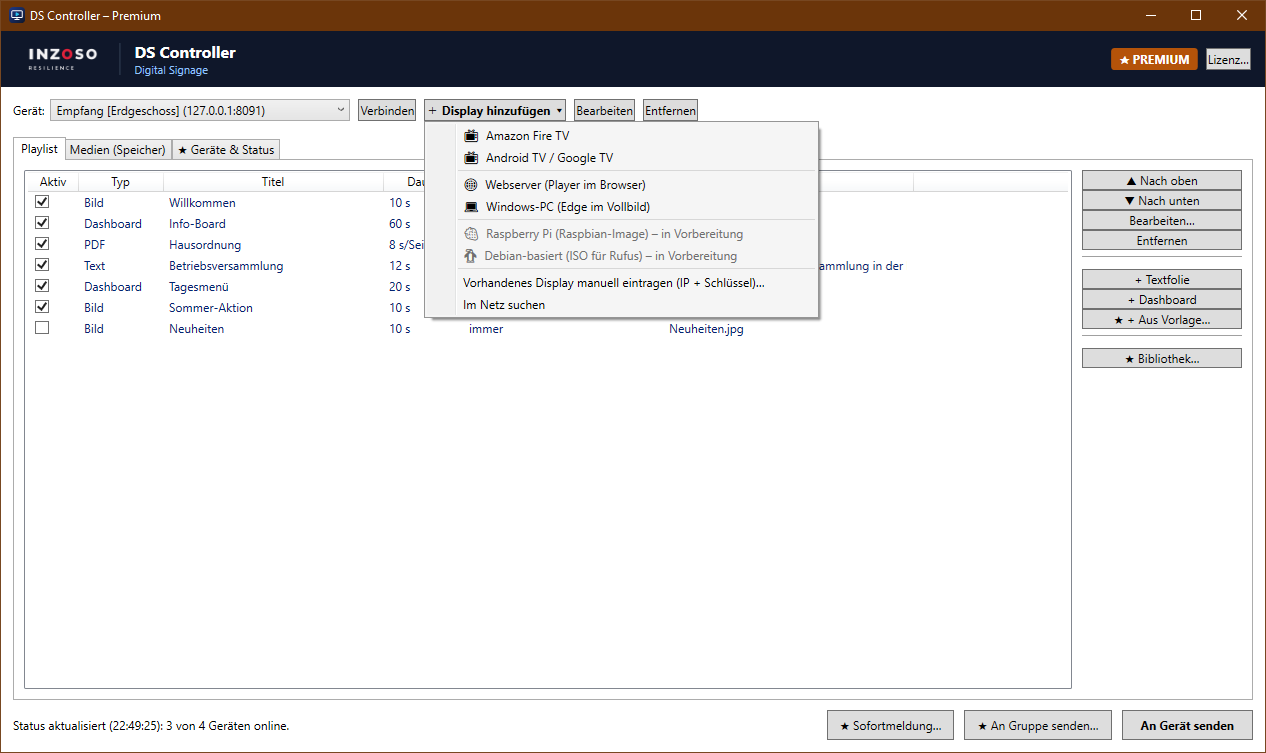
In the DS Controller: “+ Display hinzufügen” › “Windows-PC (Edge im Vollbild)”. Install the DS Controller on the PC that is connected to the screen.
Step 1: Run it on the display PC
Open the wizard on the PC that is connected to the screen. The DS server runs there and Microsoft Edge shows the player in full screen.
Tip: You control it from any other PC with the DS Controller, or directly on this PC.
Step 2: Start the server
Click “DS-Server starten” and tick “start automatically at Windows sign-in”. If the Windows firewall asks, allow “Private networks”.
Step 3: Set up the display
Click “Diesen PC als Anzeige einrichten”: Microsoft Edge starts in full screen with the player at every sign-in. Quit with Alt+F4.
Step 4: Set up continuous operation
Settings › System › Power & battery: set screen off and sleep to “Never”.
Tip: With automatic Windows sign-in (command “netplwiz”) the player starts by itself after a power cut.
Step 5: Pair
“Als Display hinzufügen” adds this PC to the controller. From another PC: “Display hinzufügen” › “Vorhandenes Display manuell eintragen” (IP address and key are in the server window).
Ending or removing kiosk mode
- Leave full screen: Alt+F4
- Remove autostart: Windows key + R, type “shell:startup” and delete the shortcuts “DS-Player (Kiosk)” and “DS-Server”. Both are removed automatically when you uninstall the DS Controller.