What is this about?
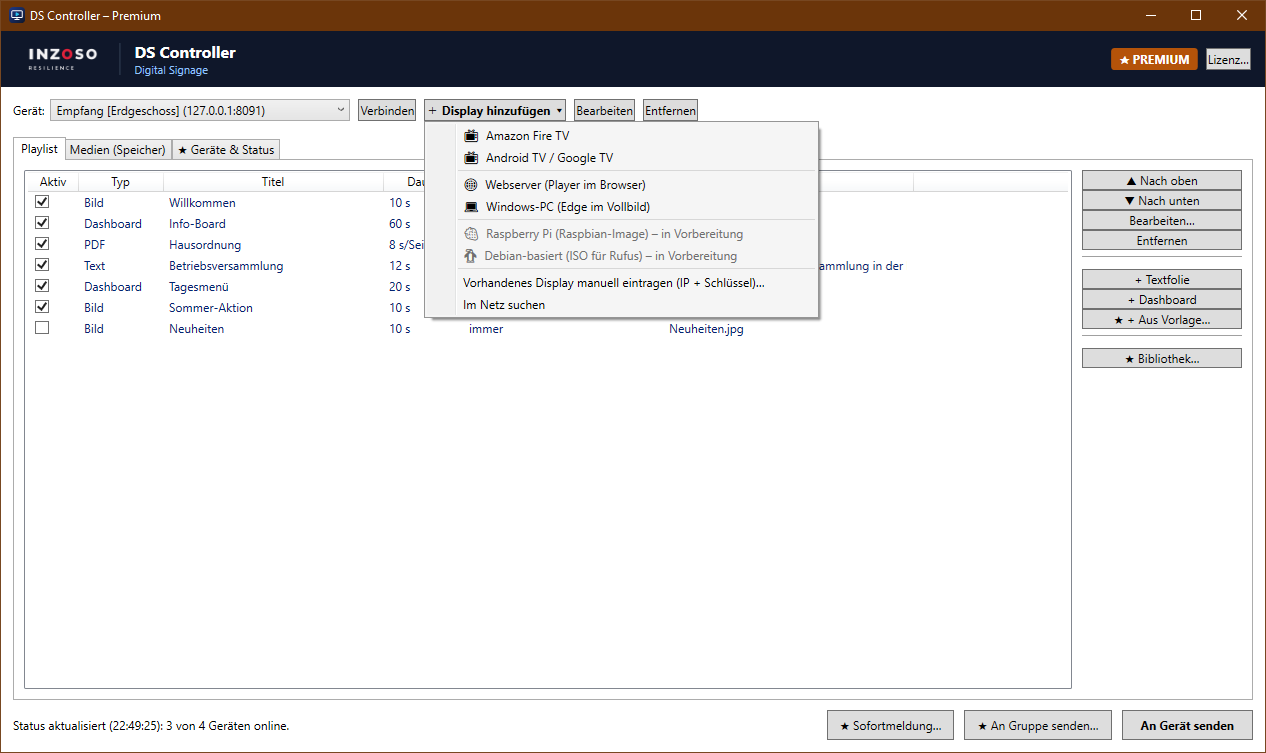
The bundled DS server is the hub: it stores playlist and media and serves any number of displays at once. In the DS Controller: “+ Display hinzufügen” › “Webserver (Player im Browser)”.
Step 1: Where does the server run?
The DS server can run on the same PC as the DS Controller or on a machine that is always on (e.g. a mini PC or a server on the network).
Tip: One server supplies any number of browser displays. They all show the same playlist.
Step 2: Start the server
Click “DS-Server starten” in the wizard. If the Windows firewall asks, allow access for “Private networks”.
Tip: With “start automatically at Windows sign-in” the server runs again after every restart.
Server on another computer: Copy the “WebServer” folder from the program folder (or the single file DsServer.exe from the download page) to the target computer and start DsServer.exe. The server window shows the address and pairing key.
Step 3: Open the display
On every screen open the address shown in the browser, e.g. http://192.168.1.10:8080/player?device=1, and press F11 for full screen.
Tip: In a browser, videos with sound only start automatically after a click. For continuous operation use kiosk mode (step 4).
Step 4: Kiosk mode (recommended)
Windows: create a shortcut to Microsoft Edge with these parameters: msedge.exe --kiosk "http://SERVER:8080/player?device=1" --edge-kiosk-type=fullscreen
On the server PC itself the button “Diesen PC als Anzeige einrichten” does this for you. Quit with Alt+F4.
Step 5: Install as an app (optional)
On the server PC itself the player can be installed as a full-screen app in Chrome or Edge using the “Install app” icon in the address bar.
Tip: On other computers this only works over HTTPS. Use kiosk mode there.
Step 6: Pair
“Als Display hinzufügen” adds the server including its key to the controller automatically. For servers on other computers: “Display hinzufügen” › “Vorhandenes Display manuell eintragen” with IP address, port 8080 and the key from the server window.
Good to know
- The DS server offers the same functions as the Fire TV app: PDFs, videos, dashboards, schedules, instant alerts, playback log.
- All browsers connected to a server show the same playlist. For different content per screen use several servers or devices.
- For security reasons the pairing key is only shown in the server window or on the server PC itself.
- Advanced start options: DsServer.exe --port 8080 --data <folder> --name "Reception"