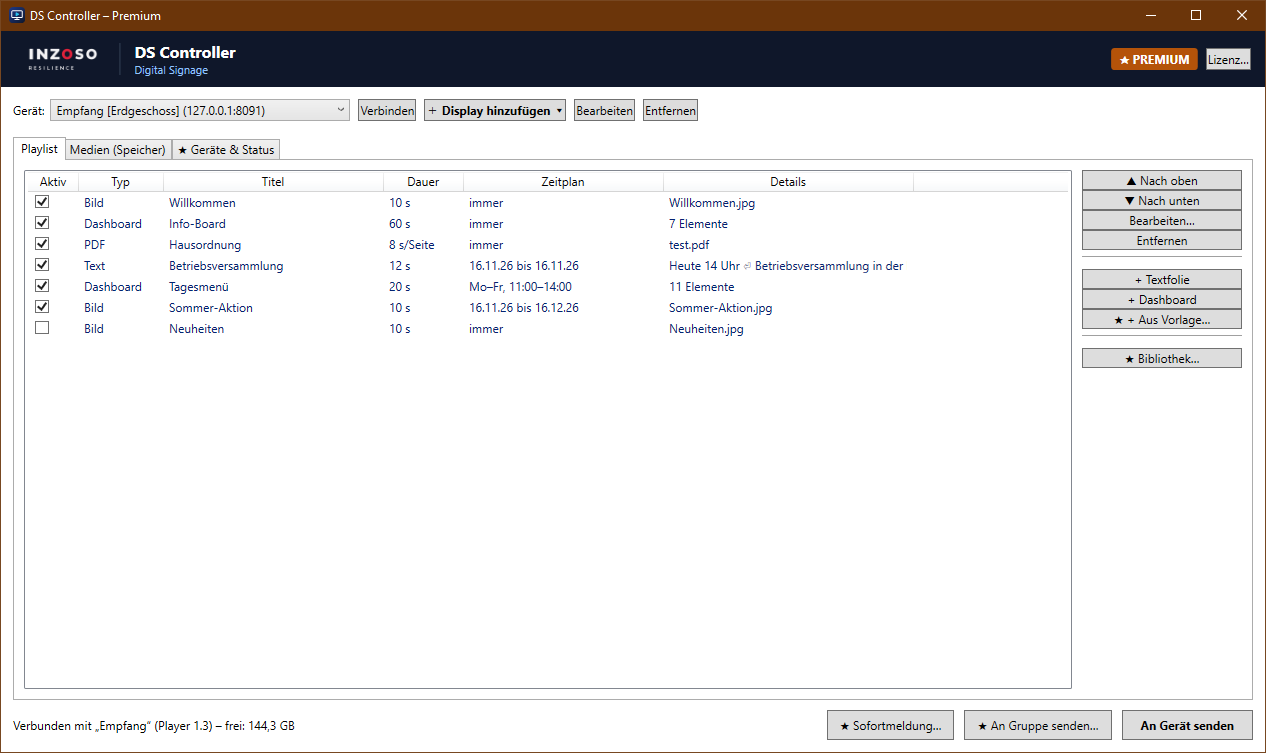
The program window at a glance
Top: device selection, “Verbinden”, “+ Display hinzufügen”, “Bearbeiten”, “Entfernen”. Top right: license status and “Lizenz…”. Below: the areas “Playlist”, “Medien (Speicher)” and “★ Geräte & Status”. Bottom: status bar, “★ Sofortmeldung…”, “★ An Gruppe senden…”, “An Gerät senden”. Functions marked ★ belong to the Premium edition.
1. Connect to a device
Select the device in the list and click “Verbinden”. The status bar shows the name, player version and free storage of the device. Set up new devices via “+ Display hinzufügen” or find them with “Im Netz suchen”.
2. Upload media
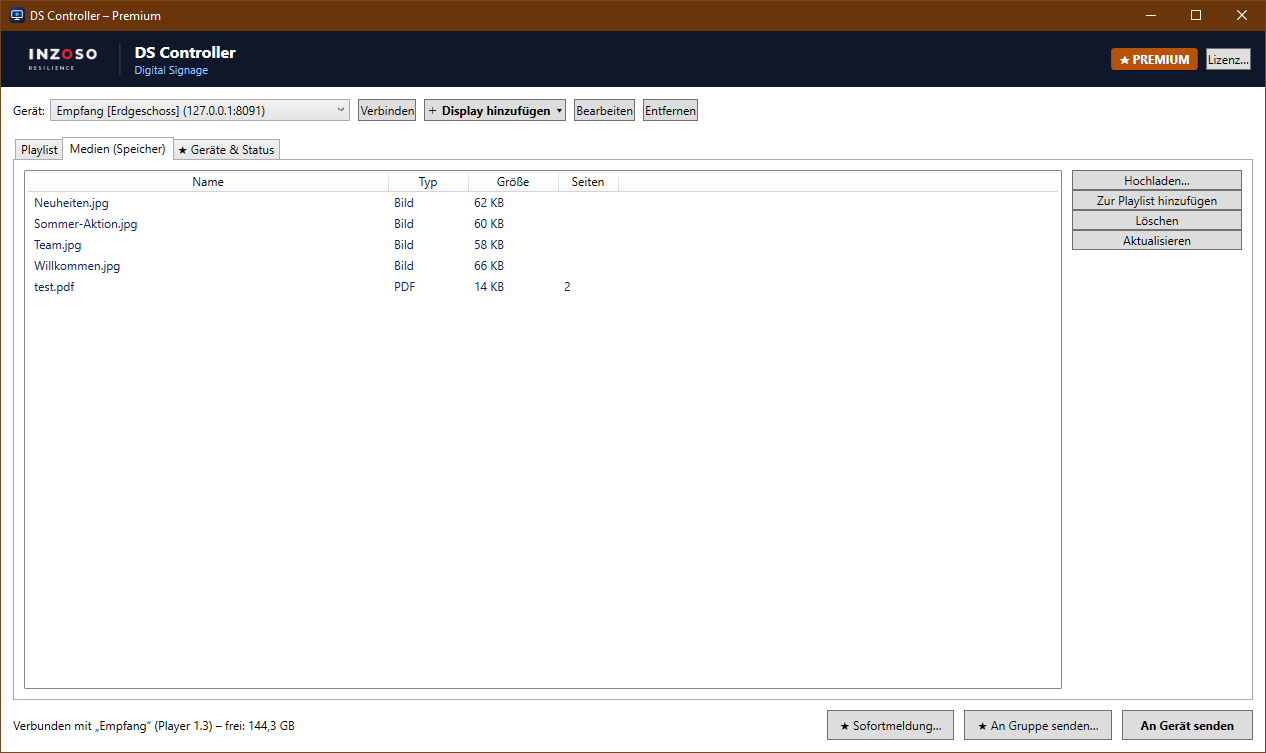
Area “Medien (Speicher)” › “Hochladen…”. Several files at once are possible.
- Images: JPG, PNG, GIF, WebP, BMP
- Videos: MP4, WebM, MOV, M4V, MKV (recommended: MP4 with H.264, max. Full HD)
- PDF: Every page is converted to an image on the device automatically (max. 100 pages)
- Media is stored on the device. “Zur Playlist hinzufügen” adds it to the playlist.
3. Build the playlist
In the “Playlist” area you can:
- Change the order with “▲ Nach oben” and “▼ Nach unten”
- “Aktiv” tick: take an entry out of the rotation temporarily
- “Bearbeiten…” (or double-click): title, display duration, schedule
- Duration: images and slides 1–3600 seconds, PDFs per page, videos play to the end
- “+ Textfolie”: text with background and font colour and font size
- “+ Dashboard”: freely designed info page (see the article on dashboards)
- Finally “An Gerät senden”. The screen picks up the new playlist within a few seconds, no restart needed.
4. Schedules
In an entry’s dialog under “Zeitplan” tick “Nur zu bestimmten Zeiten anzeigen”:
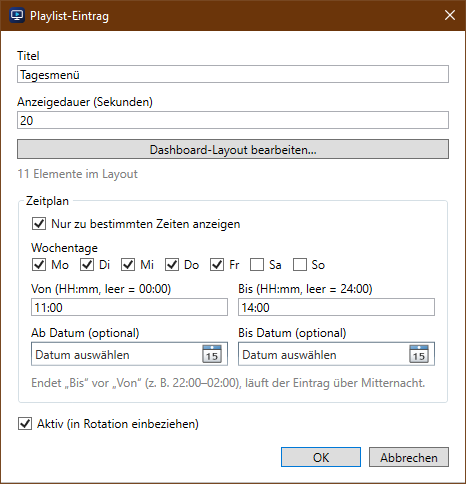
- Choose weekdays
- Time “Von” / “Bis” (HH:mm). If “Bis” is before “Von” (e.g. 22:00–02:00) the entry runs past midnight.
- Optionally “Ab Datum” / “Bis Datum”, e.g. for limited promotions
- The “Zeitplan” column shows the setting at a glance. If no entry is active right now, the screen stays black.
5. Pairing key
Every device has a 6-digit pairing key. Only someone who knows it can change content. Fire TV and Android TV: press a button on the remote and address and key appear at the bottom left. DS server: the key is in the server window.